Dashboard in a nutshell
The Dashboard is designed for quick action. Select a date in the calendar to display the appointments for that day; the list updates immediately. Tap on an appointment to make the details visible. From that view, you can email or call the contact directly and start navigation to the location—all via the standard apps on your device. If an installation is linked, you can view the installation details or tab through to the full installation overview.Components
The Dashboard is the first screen you see as soon as you log in. At the top is a brief greeting with the number of appointments for today. Directly below that, you see a horizontal bar where you can select the month and year, followed by a list of days and the appointment list for the selected day.
When you change the month, the first day of that month is automatically selected and the appointment list for that date is updated. If you choose a different day, the list of appointments is immediately refreshed based on that chosen date.
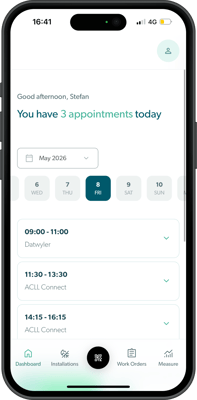
This structure gives you a clear overview of your daily schedule at a glance. The display of your appointments adjusts automatically based on your account. If you have the scheduling module, you will see calendar items with the appointment type, a description, the location, and the linked installation. If you do not have this module, you will see the scheduled work orders with the location and linked installation. In both cases, a start time in the future is displayed.
This scheduling module is only available once you have a media account, which is for 5 users.
Would you like to upgrade to a media account? Feel free to contact our sales department.
When you tab on a location, a sub-panel opens with the contact details and a number of quick actions:
-
Email to contact (opens your default email client)
-
Call contact (opens your phone app)
-
Navigate to location (opens your default navigation app)
When you tab on an installation, you will see more information. If one installation is linked, the installation details will appear in a sub-panel. If there are multiple installations at the location, you will first see a list; tap on an installation to view the details.
Below that calendar list, you will find a row of cards with useful links to help articles and, at the very bottom, a button to contact our support.
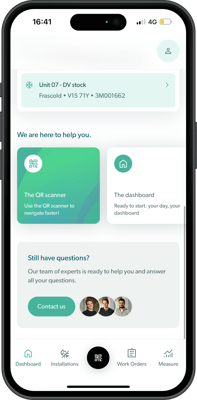
If something is unclear or does not work as you expect, please send us a brief description via the Contact button and, if possible, a screenshot of the problem. This will allow us to help you faster and more effectively.
Profile Settings
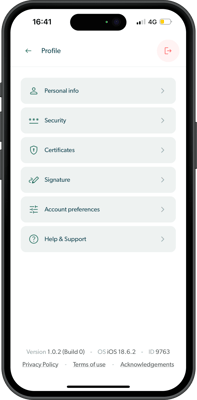
Next to the dashboard, you can access your profile settings from any navigation tab. To do this, tap the profile icon in the top right. In the profile settings, you can, among other things, update your personal details, upload certificates, and set your signature. At the bottom, you will see which version of the app you are using. You can log out via the red icon in the top right.